Transfer data using MQTT protocol#
Note
Only applicable to Barcode Readers that support Wi-Fi transmission, such as DS2800.
Set up the MQTT broker server#
Use a server to host an MQTT broker; barcode data uploaded by the Barcode Reader is forwarded through the server.
Demo software#
EMQX open-source download: EMQX
Test service#
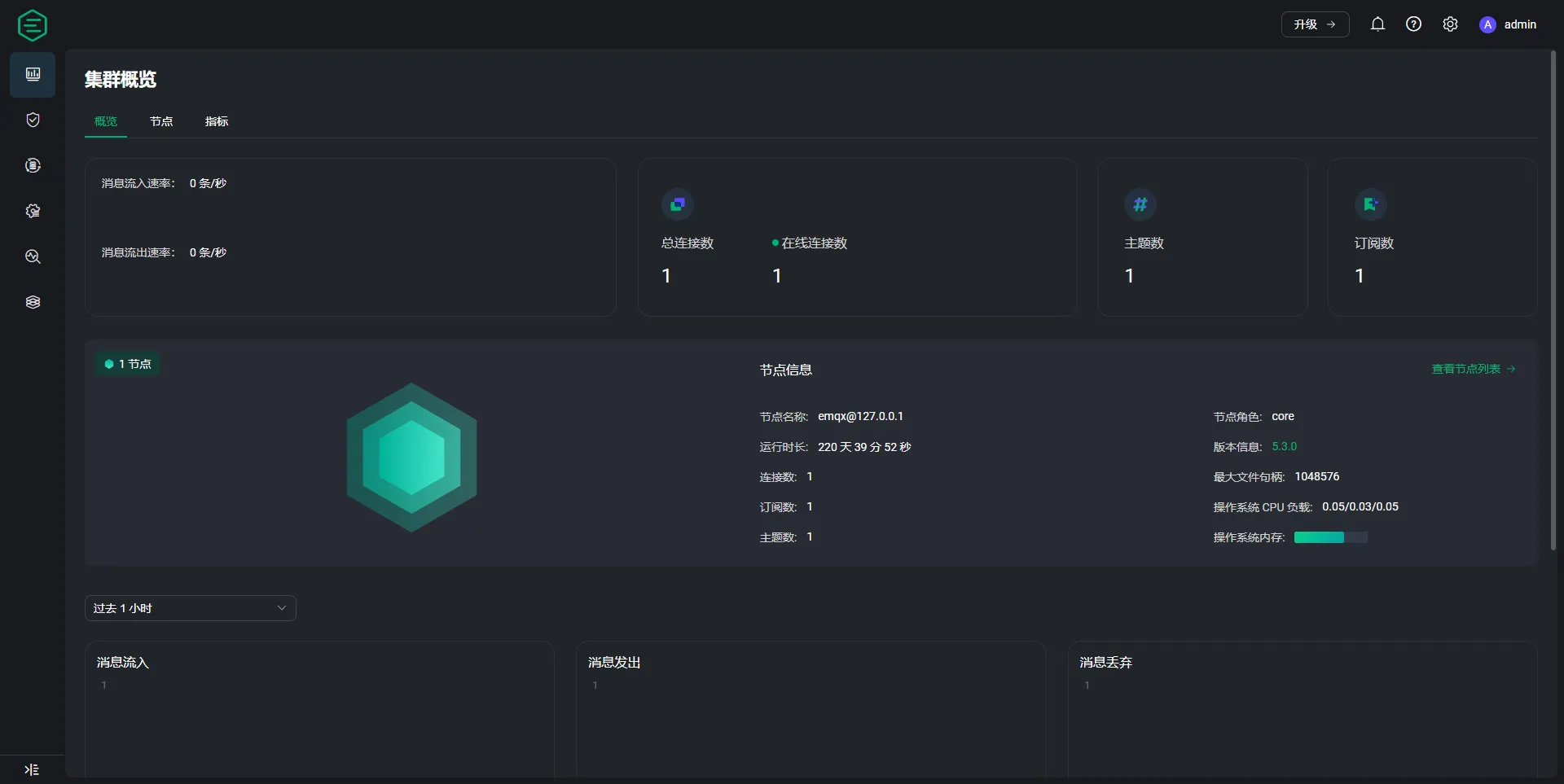
MQTT Broker test service example#
Note
Server connection information
Host:mqtt.handy.pubPort:1883Username:netumPassword:netum@2022
For testing only. Do not use in production.
Configure Barcode Reader#
Configure Wi-Fi and Broker#
Static command instructions
If the interactive HTML tool is unavailable, replace the placeholders as described in this section and verify the command.
AT+URL=2,<broker>,<username>,<password>,<publish-topic>,<qos>;AT+RAP=<ssid>[,<wifi-password>]
Note
The Barcode Reader uses port
1883by default to connect to the MQTT Broker.The default topic content for Barcode Reader subscriptions is
device ID.
Modify MQTT connection port#
Static command instructions
If the interactive HTML tool is unavailable, replace the placeholders as described in this section and verify the command.
AT+MQTTPORT=<port>
Modify Barcode Reader publishing topic#
Static command instructions
If the interactive HTML tool is unavailable, replace the placeholders as described in this section and verify the command.
%IOTPUBTP#<publish-topic>#
Modify Barcode Reader subscription topic#
Static command instructions
If the interactive HTML tool is unavailable, replace the placeholders as described in this section and verify the command.
%IOTSUBTP#<subscribe-topic>#
Receive data#
Use MQTT client software MQTTX to connect to the Broker server and subscribe to the topic where the Barcode Reader publishes messages.
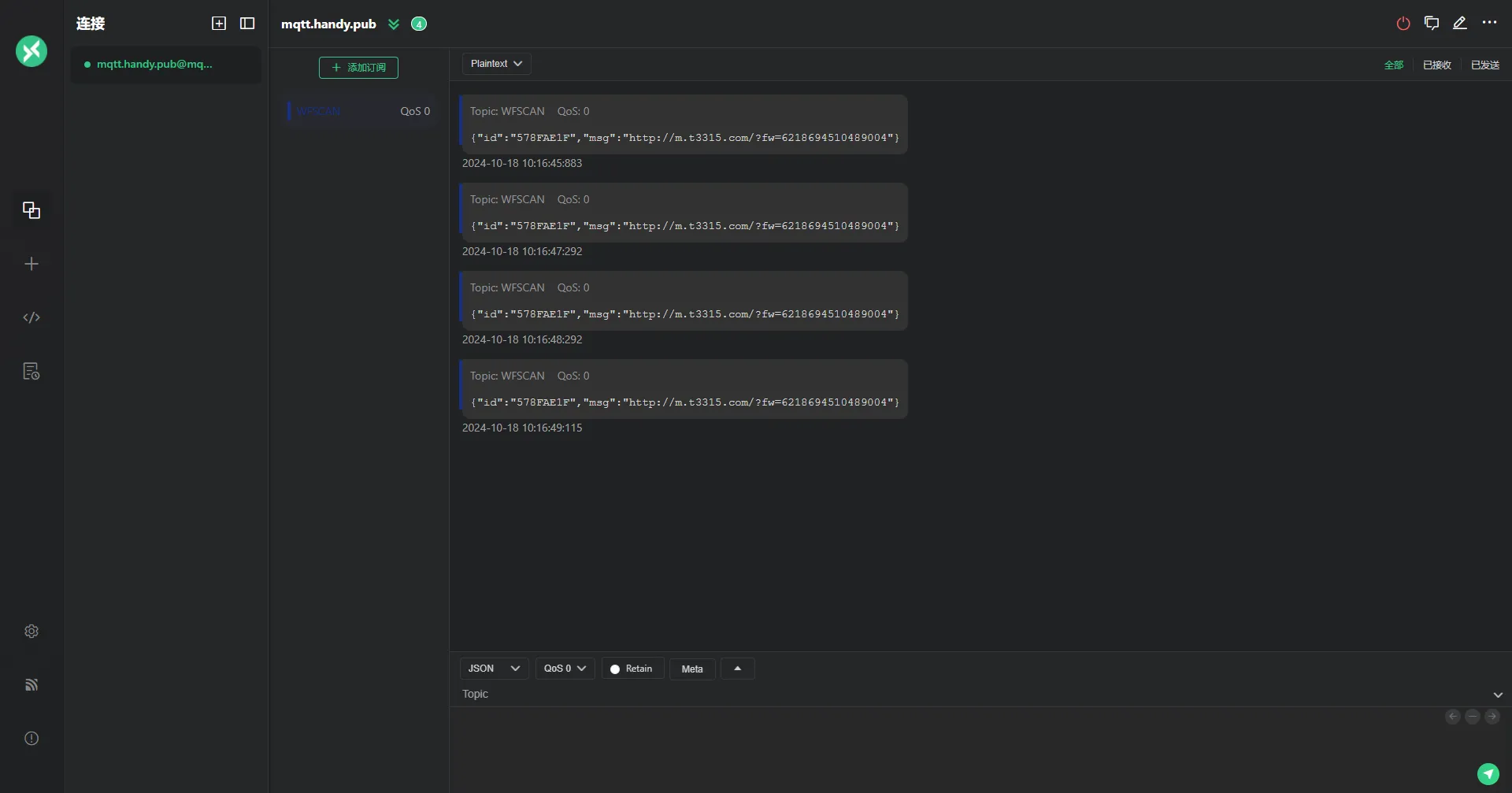
MQTTX subscription example#